
To access this utility, go to 'Subcontractors' > 'Import & Export' > 'Import/Update Subcontractors from CSV File'.
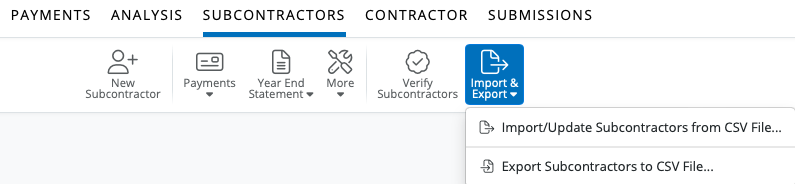
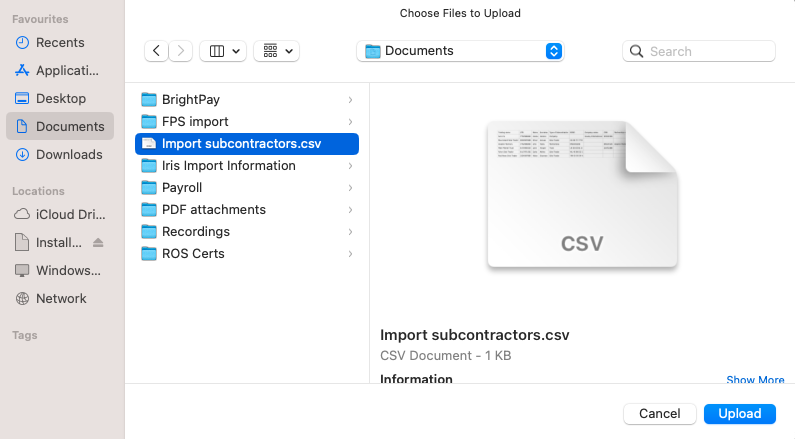
1) Browse to the location of your Subcontractor CSV File by selecting 'Select a CSV file to Upload'
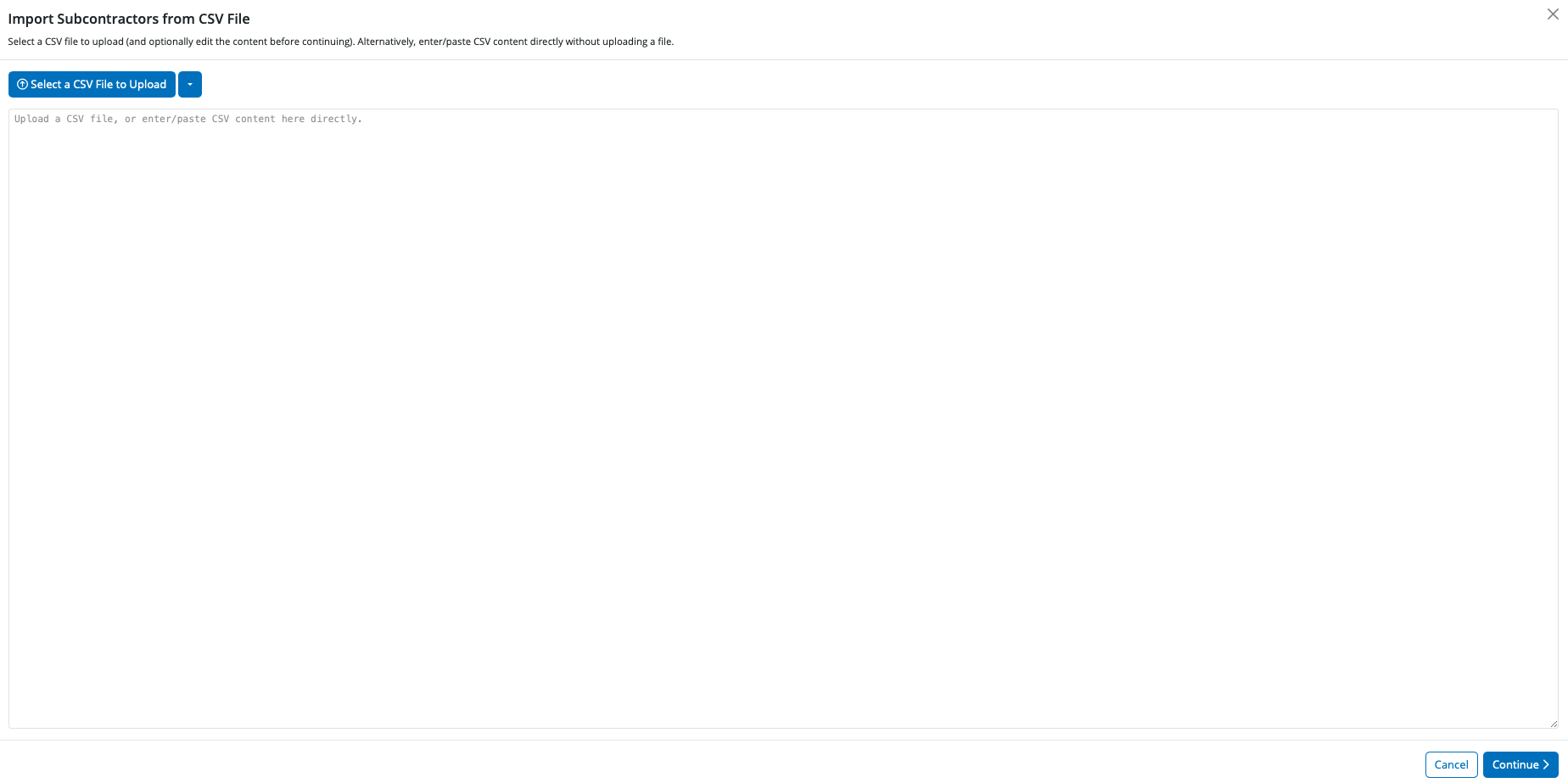
2) Select the required file and click 'Open' or 'Upload'
3) Your subcontractor information will be displayed on screen. For each column, choose the subcontractor data it represents. Ignore any columns and uncheck any rows you do not wish to be imported
To assist with column selection, simply select 'Match Header Row'. BrightCIS will try and match as many columns as it can for you.
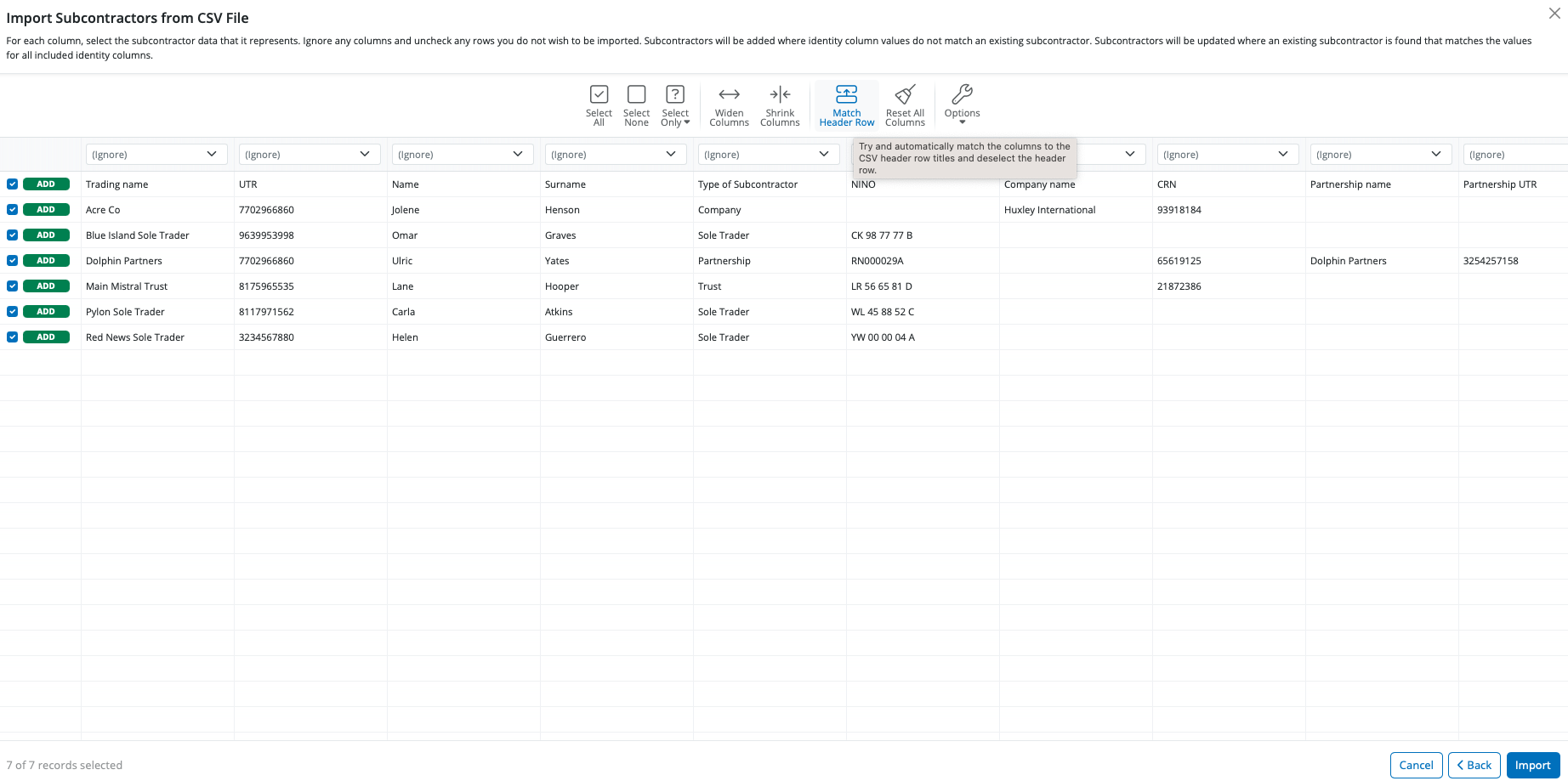
Please note: should you have subcontractors' CSV files to import for more than one contractor e.g. you are moving a number of contractors across from a previous software, simply instruct BrightCIS to 'Remember Columns'. BrightCIS will subsequently remember the column selection used in the previous import when next importing a new subcontractor CSV file.
Alternatively, should you wish to reset your column selection, select 'Reset All Columns'.
Important: Before importing your CSV file, please ensure that the first row (if it contains column headings such as “Trading Name”, “UTR”, etc.) is not selected for import.
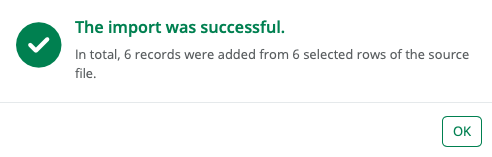
4) Click 'Import' to complete the import of your subcontractor information.
Accepted values for 'Type of subcontractor'
Fields which can be imported into BrightCIS using CSV file format are:
Identity:
Trading Name
Unique Tax Reference (UTR)
Subcontractor Details:
Business Type
Person's first name (sole trader/ partner)
Person's middle name (sole trader/ partner)
Person's surname (sole trader/ partner)
National Insurance number (NINO)
Company name
Company registration number (CRN)
Partnership name
Partnership UTR
Is VAT Registered
VAT registration number (VRN)
Tax payment status
Verification number
Verification date
Daily pay rate
Hourly pay rate
Works number
Department
Contact Details:
Address Line 1
Address Line 2
Address Line 3
Address Line 4
Postcode
Email Address
Phone Number
Payment:
Payment frequency
Payment method
Payment bank name
Payment bank branch
Payment sort code
Payment bank account name
Payment bank account number
Payment bank reference
HR:
Document password
Notes
A CSV file template for the above can be accessed here.
Note: If the csv file is not completed with 'Gross' or 'Net' then the subcontractor will show on BrightCIS as 'unmatched 30%'. Until the subcontractor has been verified or verification details entered, the default will be 30% unmatched until these are completed.
Comments
0 comments
Article is closed for comments.