
When a Contractor engages the services of a subcontractor, the Contractor must verify the subcontractor details with HMRC BEFORE the contract starts in order to determine the tax treatment of payments to that Subcontractor.
Please note: since April 2017 HMRC will no longer accept requests for subcontractor verifications by telephone – all such requests must be done online.
To send a verification request using BrightCIS, simply select "Submissions" on the menu toolbar.
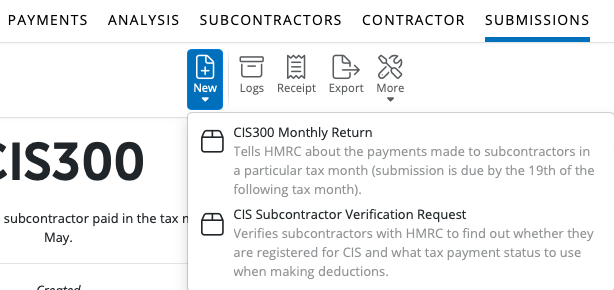
1) Click "New" on the menu toolbar and select CIS Subcontractor Verification Request
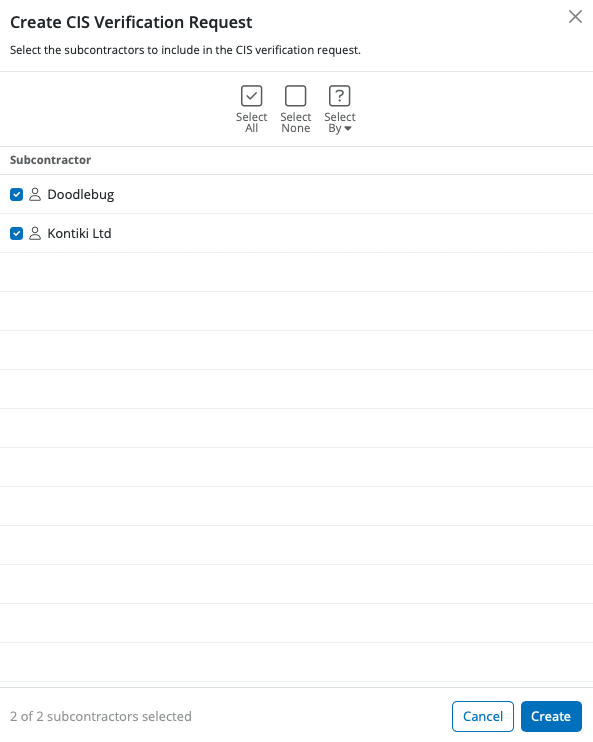
3) Select the subcontractors you wish to include in the verification request and click "Create".
The contents of the verification request will be displayed on screen. The verification request can be printed, emailed or exported at any time before or after its submission to HMRC.
4) When ready to submit to HMRC click "Send Now".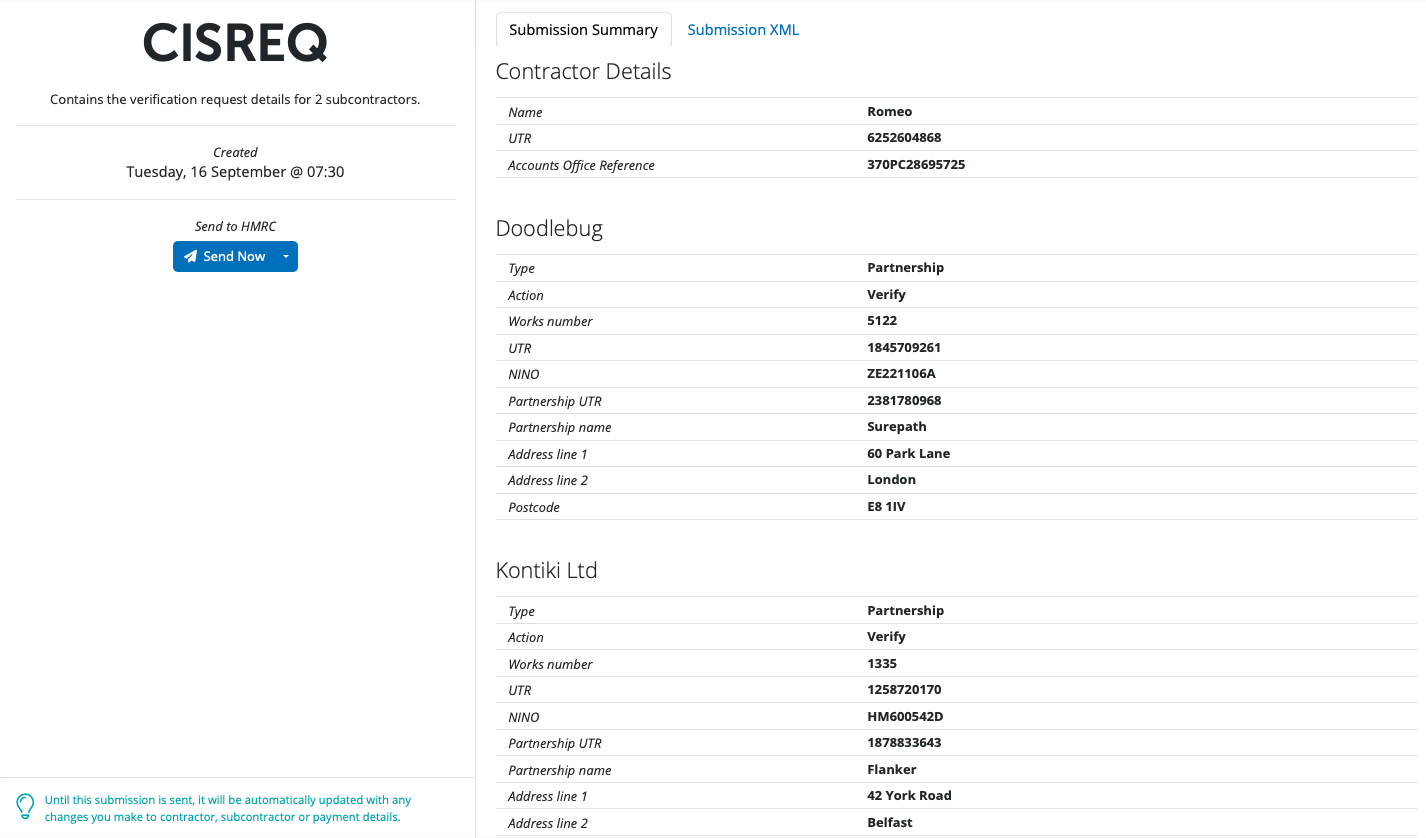
5) Confirmation details will subsequently appear on-screen to indicate that your submission has been answered by HMRC.
6) Should your submission fail, simply click on the 'Details' button for more information on why your submission has been rejected by HMRC and correct your subcontractor information where required.
Once the verification request has been submitted, the subcontractor details can be updated. To update the subcontractor records with the tax payment status and the verification number in the response from HMRC, click "Update Subcontractors".
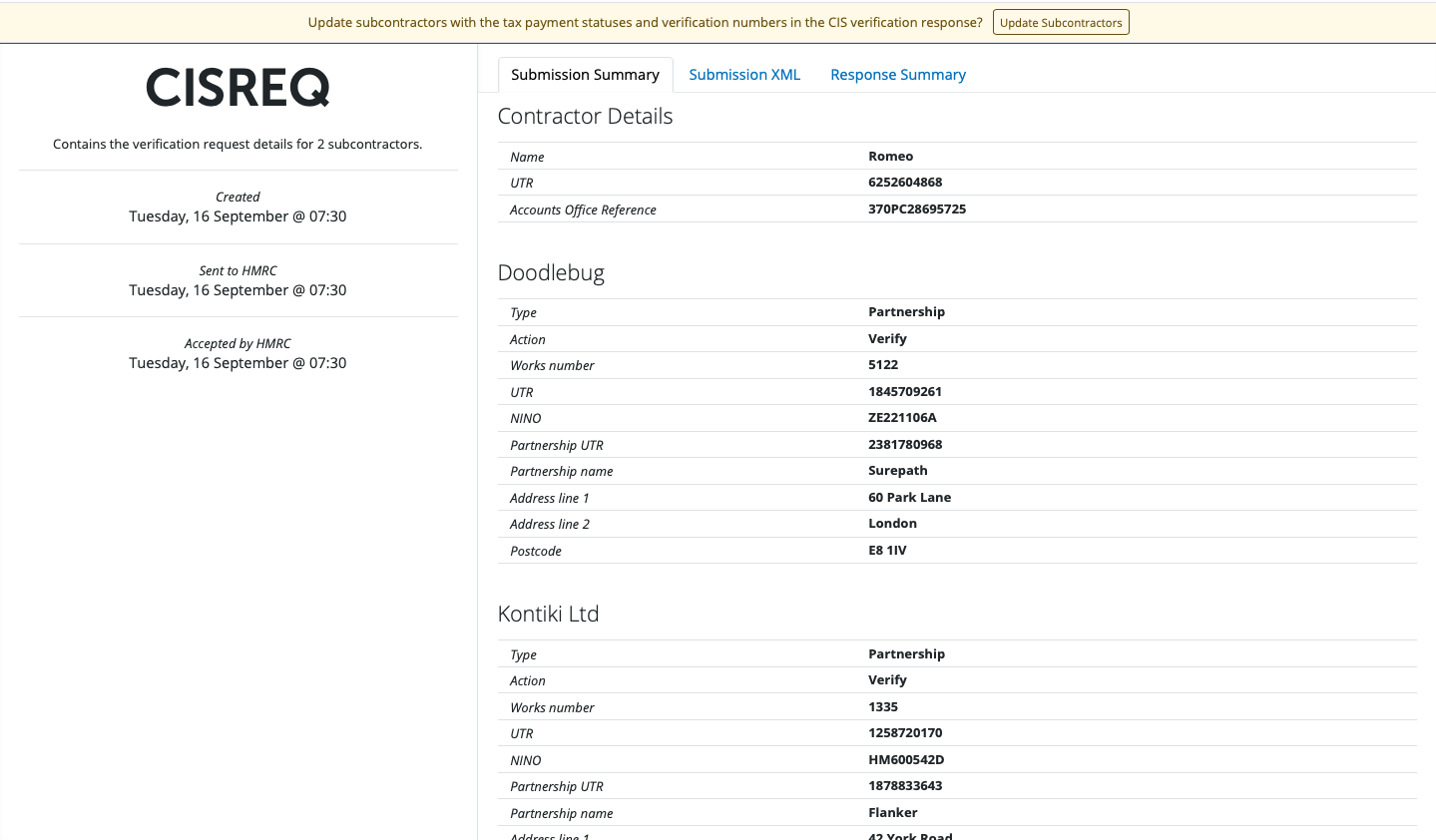
Once the subcontractor records are updated, this will be indicated by a green Verified box under the Verification heading in the Subcontractor's profile and the submission will show that it has been accepted by HMRC.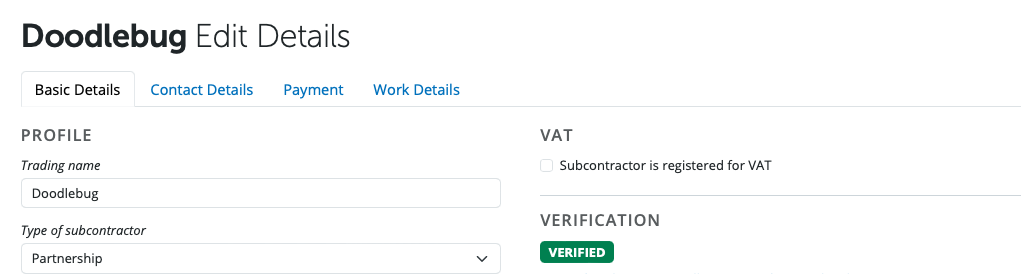
Please note: verification requests can also be prepared by accessing the "Subcontractors" menu and selecting "Verify Subcontractors".

Or by selecting a subcontractor in the Subcontractors section > Basic Details > Verify Online.
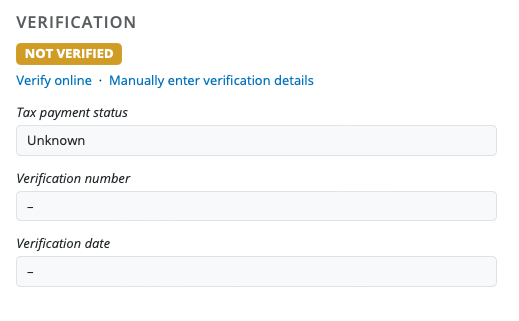
Verifying a subcontractor who does not yet have a UTR
FAQs
- If this relates to CIS and you have not previously been able to successfully submit a CIS verification request for this subcontractor, you may not be correctly registered with HMRC for CIS for this client.
- If you are acting as an agent, you must be specifically registered with HMRC for CIS for this subcontractor.
- You may still be able to submit CIS300 returns without issue, but verification requests will fail if the CIS agent authorisation is not in place.
- On the employer’s HMRC online account, there is an additional setting (often presented as a checkbox) where the employer grants agent authorisation to submit CIS verification requests on their behalf.
- Ask the employer to confirm that this authorisation has been correctly granted to you for CIS.
-
If you have confirmed your CIS registration and agent authorisation, but you still receive error 1046 or the same authentication failure message, you will need to contact: HMRC Online Services Helpdesk Telephone: 0300 200 3600They can review your online credentials and CIS authorisation and advise on any required changes.
Q. My verification submission is stuck / showing as ‘Waiting for HMRC’. What should I do?
A. If a verification submission appears stuck in a ‘waiting’ or ‘pending’ state and is not progressing, follow these steps:
-
Check your connection and HMRC status
- Make sure you have a stable internet connection.
- Check HMRC’s service status for any known issues:
https://www.gov.uk/government/collections/hm-revenue-customs-service-availability-and-issues
-
If it has been pending for more than 24 hours
- The submission may have timed out on HMRC’s side.
- Contact BrightPay Support so we can clear the stuck submission for you.
-
Pending verifications cannot be deleted by users
- You won’t be able to remove a pending verification yourself.
- BrightPay Support can remove these on request.
-
Re-submit the verification
- Once BrightPay Support has cleared the stuck submission, go back to the Subcontractors screen and re-submit the verification.
Comments
0 comments
Article is closed for comments.