
To add a new subcontractor to BrightCIS, open the contractor and select > Subcontractors > New.
Complete the Contact Details and Work Details for a subcontractor as follows:
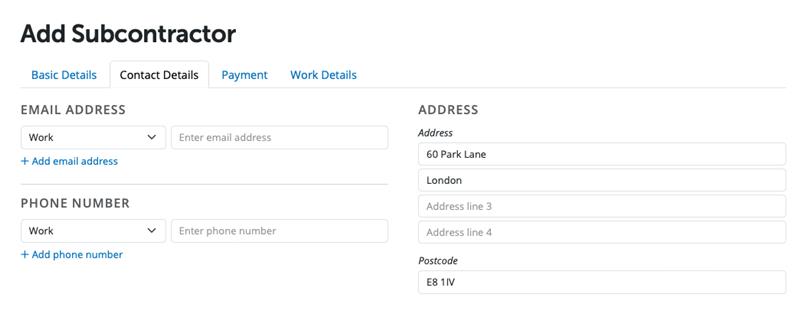
Contact Details
Address
Enter the subcontractor's address and post code.
Email Address
Enter a contact email address for the subcontractor. Select whether it is a work address or a personal address from the drop down menu. To add additional email addresses, click Add Email Address and repeat the process. If more than one email address is added, specify which is to be the primary address. The primary email address will be used for the emailing of payment & deduction statements.
Phone number(s)
Enter a contact telephone number for the subcontractor. Select whether it is a work or personal phone number from the drop down menu and then enter the telephone number. To add additional phone numbers, click Add Phone Number and repeat the process. If more than one phone number is added, specify which is to be the primary contact number.
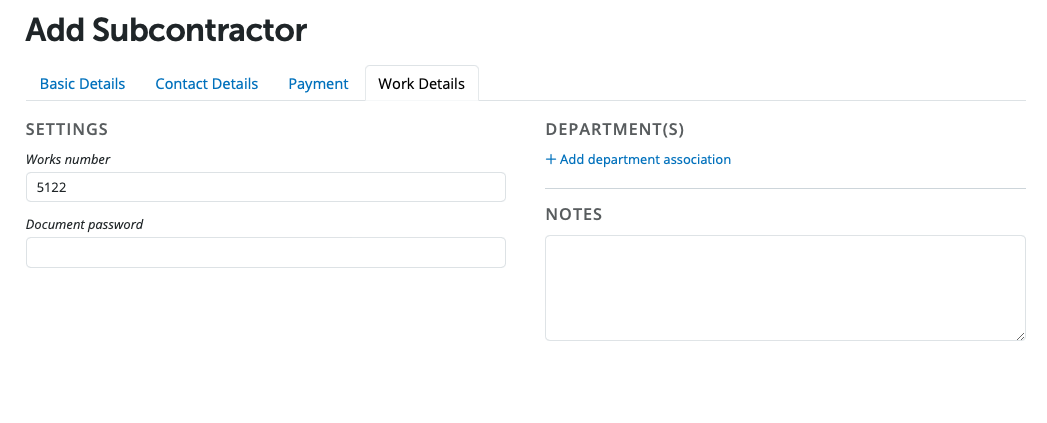
Work Details
Works Number
If desired, enter a works number - this is an optional field. If a works number is not entered, BrightPay will generate one for the purpose of the HMRC submissions.
Secure PDF Password
If the subcontractor wishes to receive password protected payment & deduction statements by email, enter the password that will be needed by the email recipient in order to open and view these attachments when received.
Add Department Association
To allocate a subcontractor to a department, click on "Add Department Association" and choose the desired departmental name from the drop down menu. If the relevant department has not yet been set up, simply set this up within Employer > Departments > New
A subcontractor can be allocated to more than one department if required. To do this, click on Add Department Association again and select an additional department from the drop down menu. Set the subcontractor's weighting in each department by dragging the bars to the percentage required.
Notes
The "notes" utility facilitates notes to be held on each subcontractor file. If desired, enter any other notes of importance in this section.
THE SUBCONTRACTOR'S 'ADDITIONAL DETAILS' ARE NOW COMPLETE. SELECT THE ‘PAYMENT’ TAB TO CONTINUE TO SET UP THE SUBCONTRACTOR'S RECORD.
FAQs
Q. How do I delete a subcontractor in BrightCIS for 2026/27?
A. This depends on whether the subcontractor has any payments recorded.
Subcontractor added in 2026/27 only (no payments in earlier years)
If the subcontractor only exists in the current tax year, and is not referenced in any pay periods, you can delete them as follows:- Go to the Subcontractors tab.
- Select the relevant subcontractor.
- Click More and choose Delete “[Subcontractor Name]”.
Subcontractor with payments in this or a previous tax year
If the subcontractor has been used in any pay period (this year or a prior year), you will not be able to delete them. You will see an error similar to:"Item cannot be deleted.
This item is referenced in one or more pay periods (open or finalised) and cannot be deleted. To delete this item, you will first need to remove it from all pay periods."In this case, the record must be retained, but you can hide the subcontractor from future periods:
The subcontractor will no longer appear in future months, but their historical record will be retained.
- Open the subcontractor’s record and go to the Payment tab.
- Under Include payments in, select Specify range of tax months.
- Set the range to a single past tax month (e.g. Tax month 1 to Tax month 1).
Important - At the moment, it’s not possible to delete subcontractors that are referenced in existing pay periods. However our development team is actively working on a fix to allow the removal of Subcontractors in previous tax years.
In the meantime, please be assured you will not be billed for these subcontractors. We will ensure you are not charged incorrectly and will release a fix as soon as possible.
Comments
0 comments
Article is closed for comments.